

Rohan explains how this MARKUS drag and drop feature makes scheduling faster and easier.
Our last open day was a great opportunity to speak to some of our customers and find out what MARKUS features have the most impact on their day-to-day tasks.
One standout was the ‘View Day’ section in the operative diary. This feature shows you a timetable for each selected operatives’ working day, and allows you to drag and drop jobs between times and and operatives – making scheduling quicker and more efficient.
Here’s how it works:
To get started, you need to access the ‘Operative Management’ menu item, and go into the ‘Operative Diary’ page. Depending on how your system is configured, you may need to ask us to enable the menu item for you.
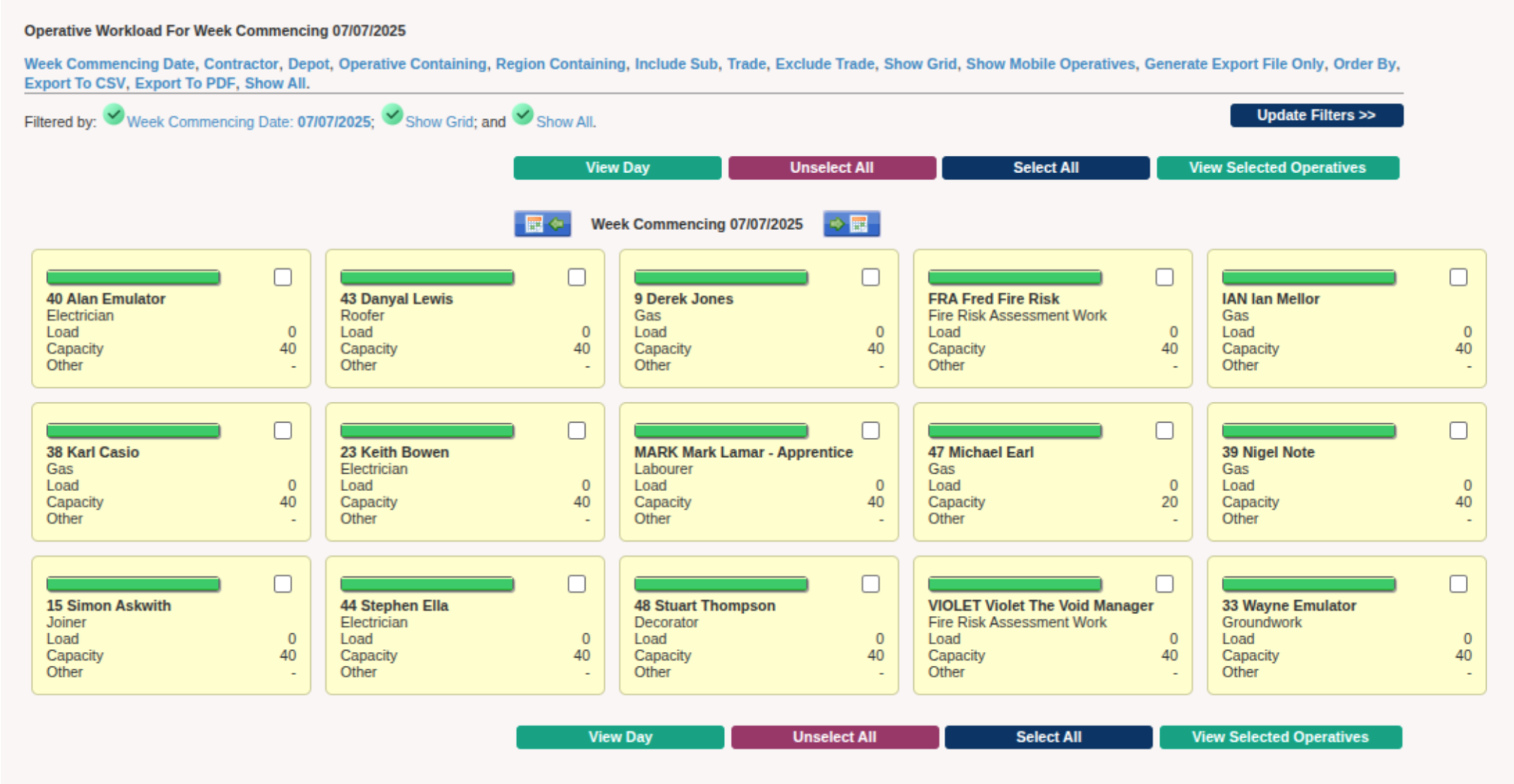 From here, you can use the arrows near the centre of the screen to navigate through the different weeks.
Select any operatives you want to view, and then click the ‘View Day’ button at the top of the screen.
This will bring up a screen that shows a timetable of all the jobs the operatives have on that day.
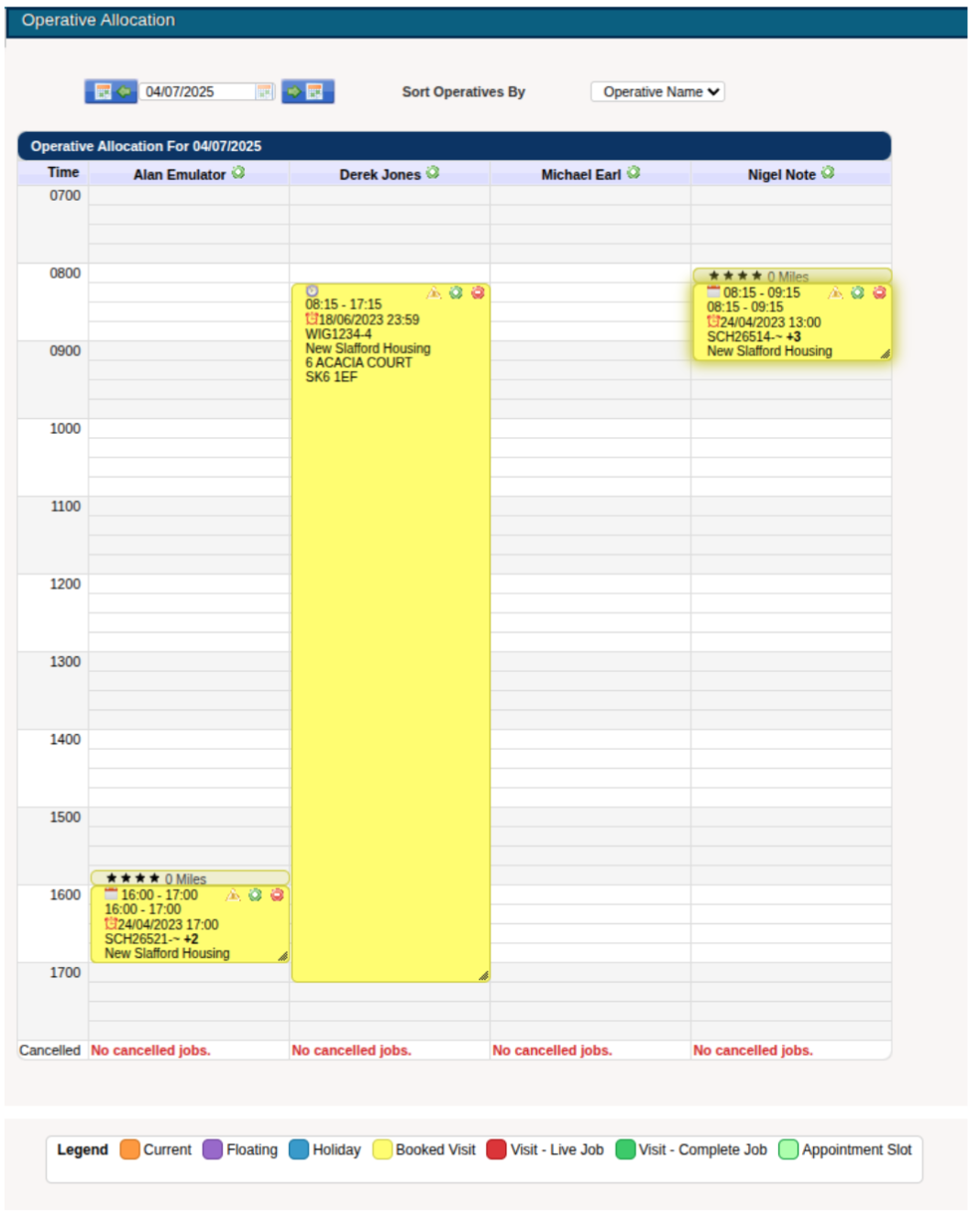
This page allows you to drag and drop jobs to different times as well as different operatives.
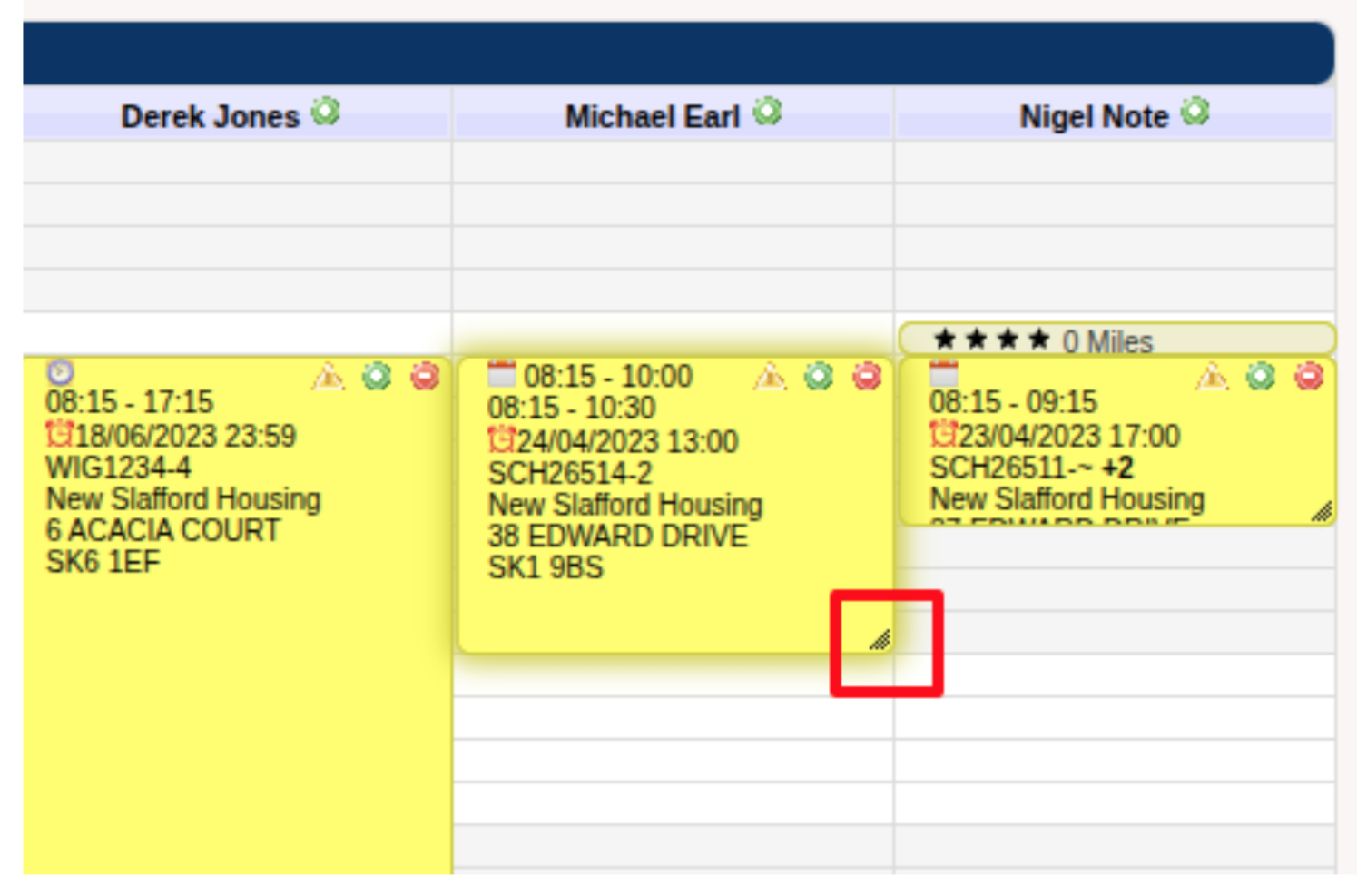
 You can also modify how long the job should take – by dragging up or down from the bottom corner to modify the end time of the job to whatever we would like.
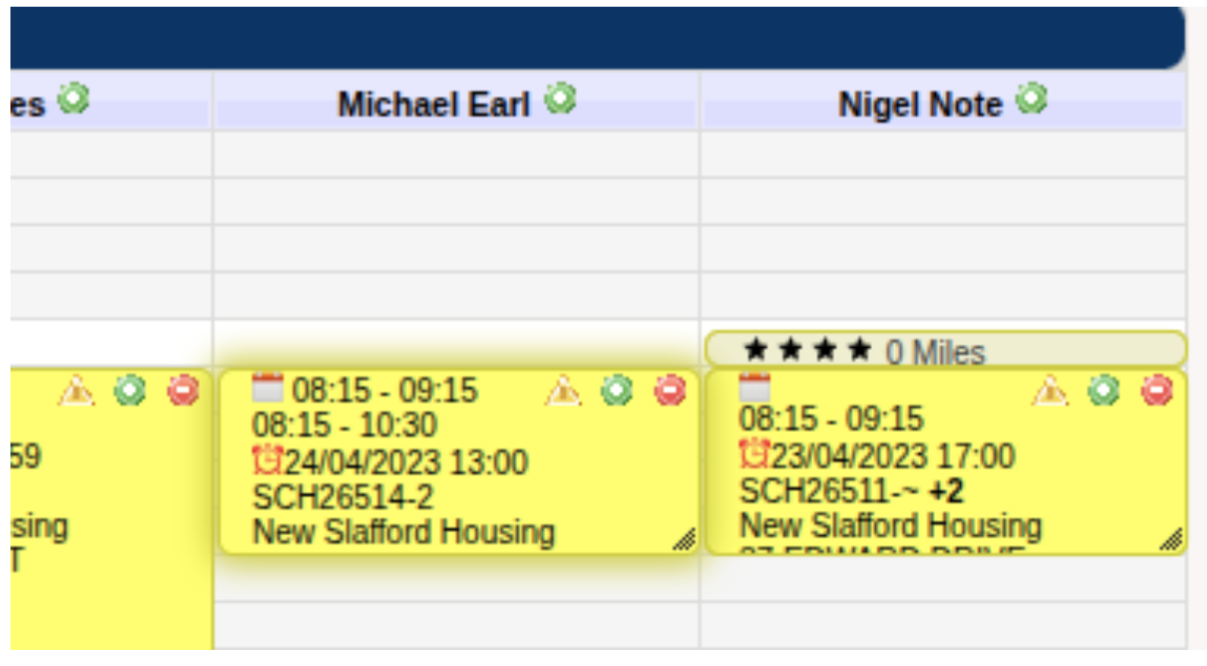
 Want more than one operative on a job? By clicking the green cog, you can duplicate the job and have it assigned to multiple people.
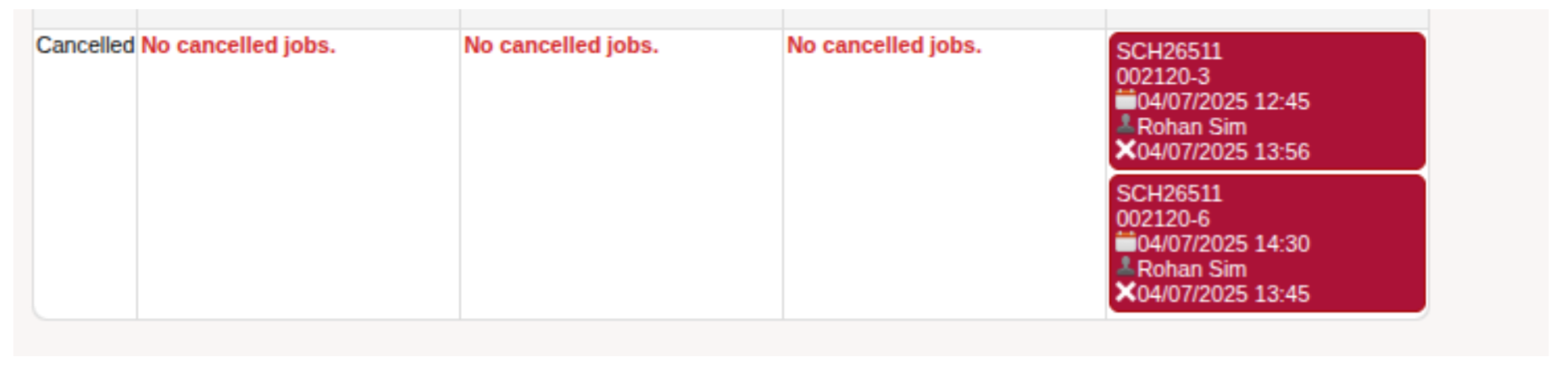
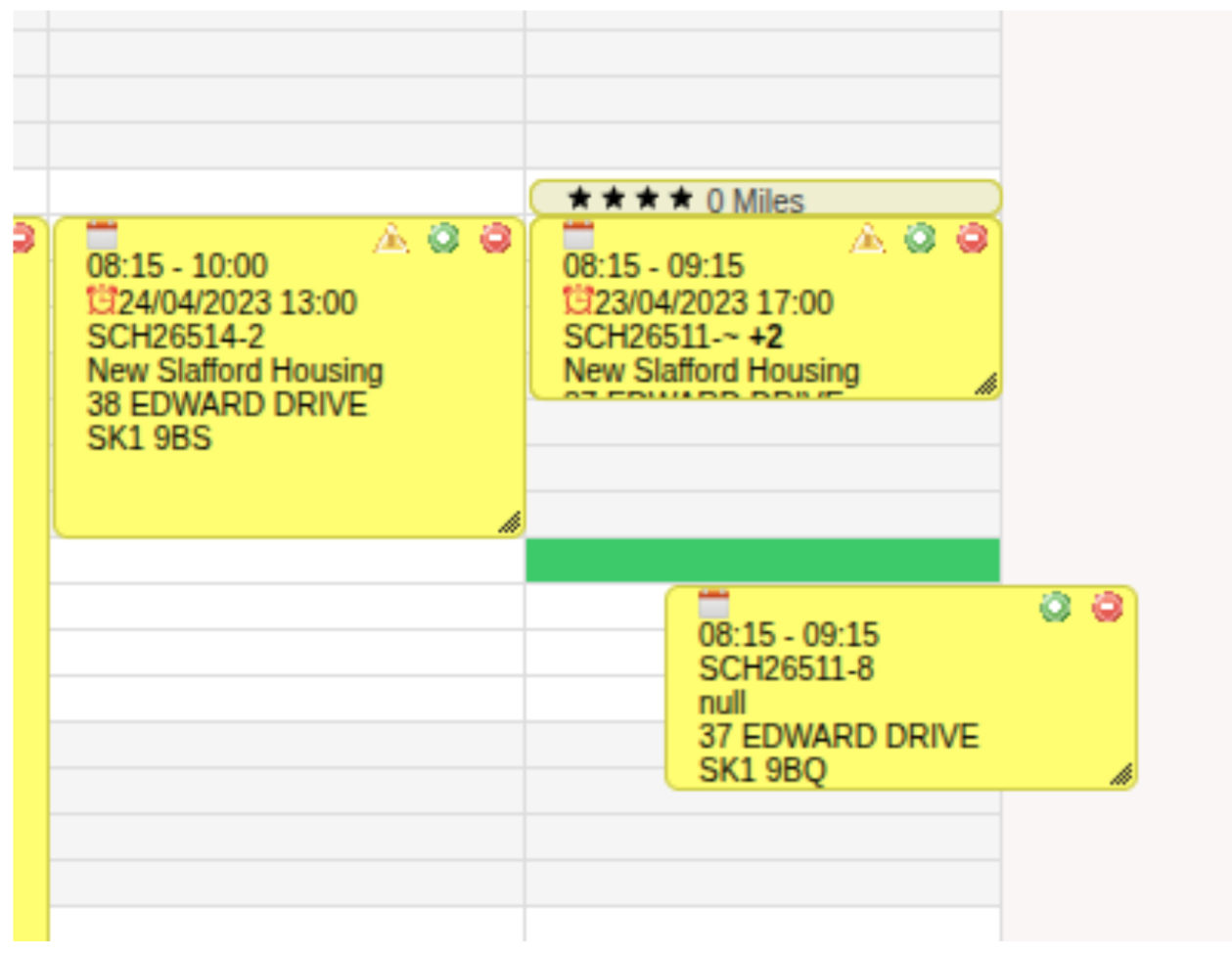 Finally, you can cancel the job allocation by clicking the red close icon, which will move the job to the cancelled section below the operative’s column.
 This feature is designed to make your scheduling process even smoother. If you have any questions or feedback, feel free to reach out to us by phone or email – we’re always happy to help!
For more hints and tips about using MARKUS check out these New Feature Alerts:

